
Taking an offer
After setting up a payment account you're ready to take your first offer.
Select an offer
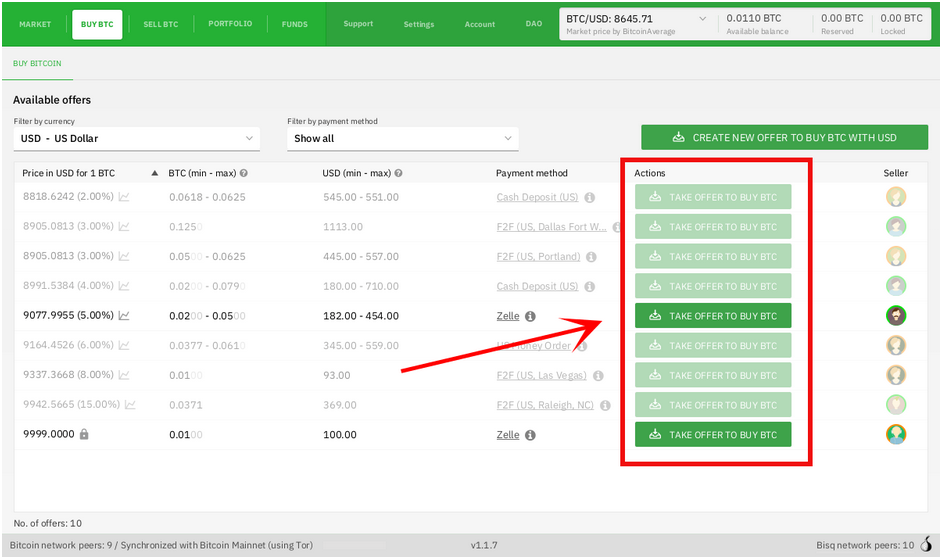
First, click on BUY BTC and click on any of the available TAKE OFFER TO BUY BTC buttons. Each offer will list the min and max amounts you can buy, the exchange price and the payment method.
Historical full-size recovered source. Provenance catalogue.
Note on limits for new payment accounts:
To secure the network from scammers and other bad actors, unsigned Bisq payment accounts are limited to buying 0.01 BTC until they are signed by another trusted peer.
You can have your new payment account signed by selecting an offer to buy bitcoin from a seller who’s capable of signing your account. - Click [here] for info on account signing
Just look for an offer with a check mark.
Deposit and fees
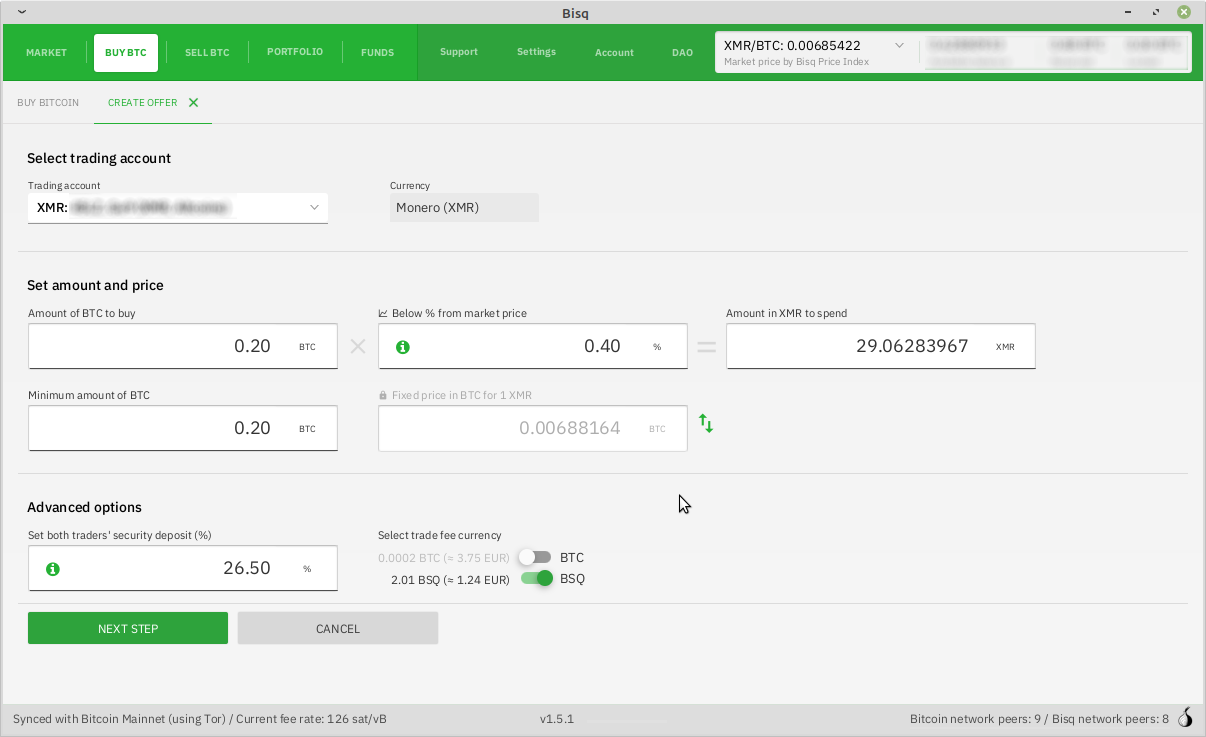
When taking an offer, Bisq creates a special trade wallet to hold your security deposit and fees. This wallet will be used to pay your taker fee, and will then be used to transfer your security deposit into a multisig escrow transaction together with the seller’s security deposit and the bitcoin being traded.
Full-size historical file recovered from the 14 October 2026 archive. Provenance catalogue.
Once you and the seller have completed your ends of the trade, you’ll receive the bitcoin you bought along with your security deposit.
There are 2 ways to pay for the deposit and fees:
- If you already have enough bitcoin in your Bisq wallet, click Transfer funds from Bisq wallet and the funds will be automatically transfered to the trade wallet.
- If not, go ahead and send the amount required Funds needed to the specified address Trade wallet address using your personal wallet.
Click [here] for details on trading fees and the BSQ token.
Confirm trade
Once you’ve funded your trade wallet, you’ll see a Review: Take offer to buy bitcoin button appear.
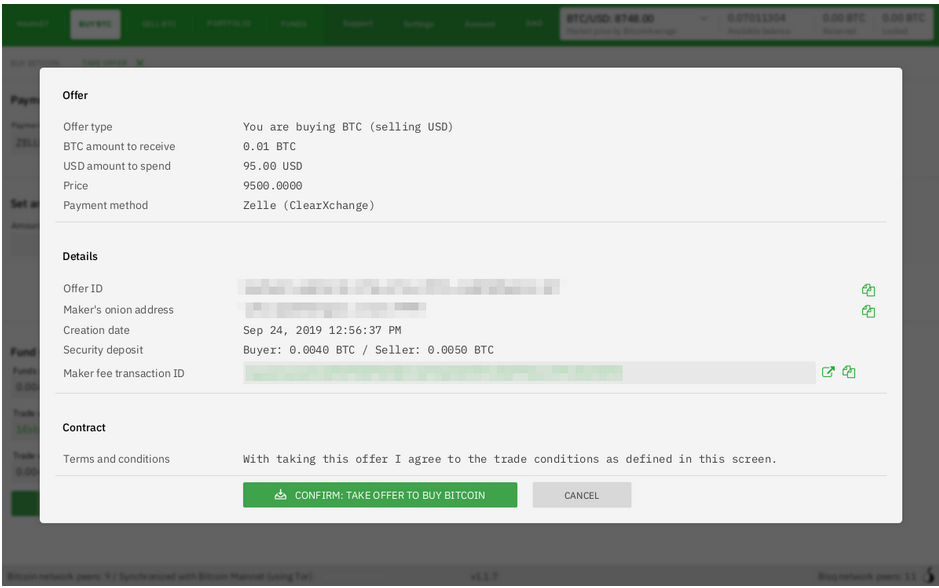
Click it, Bisq will display all details pertaining to your offer.
Historical full-size recovered source. Provenance catalogue.
Make sure these details are correct. After you confirm these details, there's no way to cancel the trade you must follow through or risk losing your deposit.
If everything looks correct, go ahead and hit Confirm: Take offer to buy bitcoin.
Your trade has now officially begun!
Send payment
Now that you’ve taken an offer, it’s almost time to pay the seller.
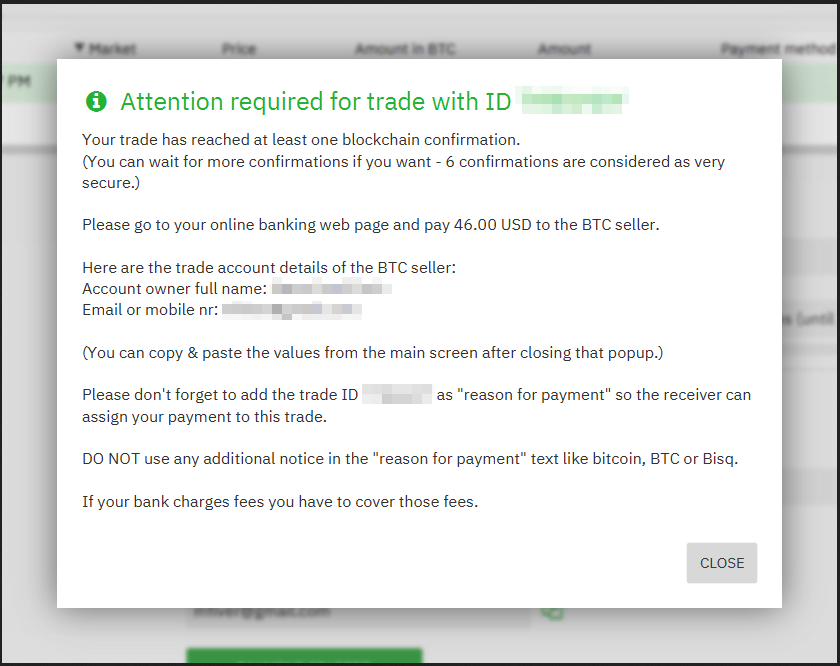
First, before showing you the seller’s payment details, Bisq will wait for the Bitcoin network to confirm the trade’s transactions. On average, this takes 10 minutes.
Then, you’ll see a pop-up with the seller’s details. Go ahead and pay the seller through the agreed payment method.
Historical full-size recovered source. Provenance catalogue.
How long should you wait before sending the payment?
Each confirmation makes a bitcoin transaction exponentially harder to reverse. You can wait for as many confirmations as you like before sending payment—just note the remaining time indicator. The seller must receive your payment before that timer runs out.
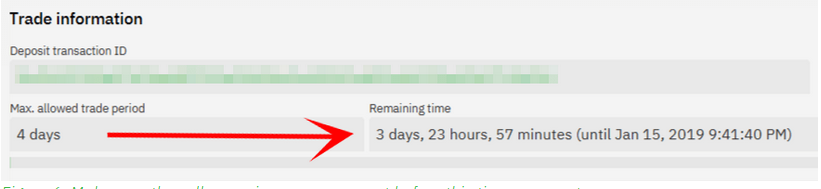
Historical full-size recovered source. Provenance catalogue.
Learn more about Bitcoin transaction confirmations [here]
Mark payment as sent
Important:
Once you’ve sent your payment, be sure to mark the payment as sent in Bisq by clicking the Payment started button.
It’s easy to forget this step, but remember: Bisq doesn’t integrate with national currency payment methods in anyway so Bisq won’t know you’ve sent your payment until you say so.
When you click Payment started, the seller will receive a notification that lets them know the payment is on the way. They’ll be on the lookout for it now.
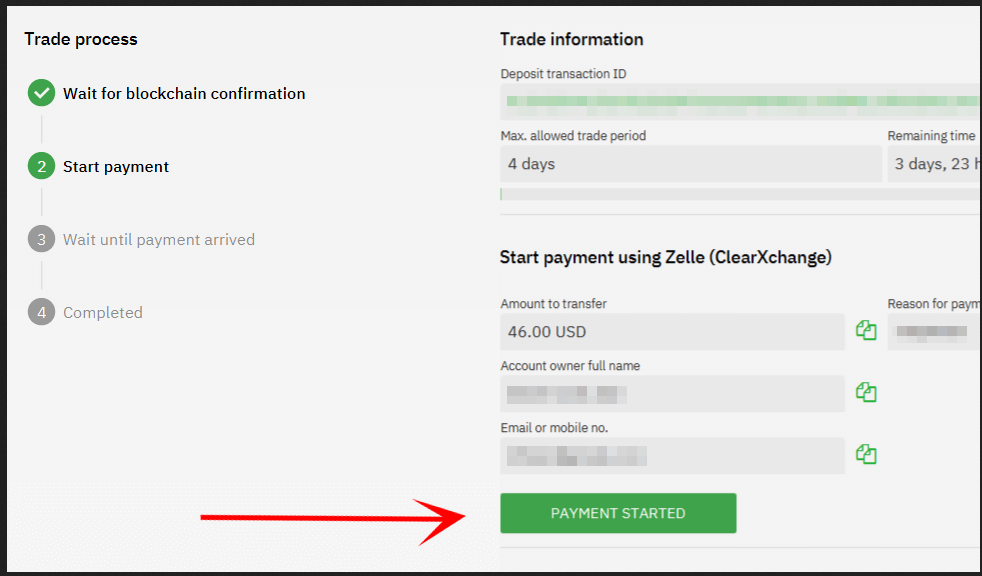
Historical full-size recovered source. Provenance catalogue.
Complete trade
When the seller receives your payment, they’ll mark it as received in Bisq. Bisq will then complete the trade by releasing the bitcoin you bought to you along with your security deposit.
You can keep your new bitcoin in your built-in Bisq wallet by clicking Move Funds to Bisq Wallet or send it elsewhere by clicking Withdraw to External Wallet.
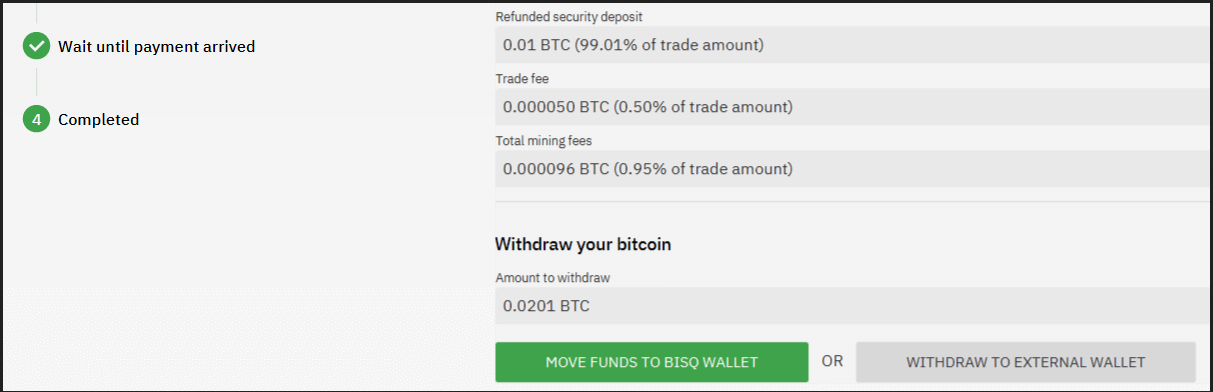
Full-size historical file recovered from the 14 October 2026 archive. Provenance catalogue.
Congratulations. You’ve just completed your first trade on Bisq!
Source and history
This article keeps its recovered wording, headings, step order and available images. Formatting and links are adapted for this site. The snapshot does not guarantee that every instruction is current.
- Original page
- Taking an offer
- Revision
- 2073 · 14 Mar 2021
- Last recorded editor
- MwithM (not a complete author list)
- Snapshot
- 18 October 2026
- Source files
- Original wikitext · Revision metadata
- Image references
- 7 recovered, 0 missing · Media catalogue
- Recovery gaps
- 0 restored historical template occurrences · 0 unresolved templates · 0 unresolved article links · 0 unresolved sections